How do I organise Google Drive so I can actually find things?
Google Drive is brilliant.
Until it isn’t.
At first, it feels like the answer to everything. You can create folders, share files, work on documents with other people, access things from anywhere and avoid saving seven versions of the same document to your desktop.
Lovely.
Then, a few months later, you are searching for that file.
You know the one.
It might be called “Final version”.
Or “Final final version”.
Or “Updated final version use this one”.
Or, if things have got really exciting, it might be sitting in a folder called “New folder”.
This is usually the point where Google Drive stops feeling like a helpful business tool and starts feeling like a digital loft.
Everything is technically in there.
Somewhere.
The problem is not usually Google Drive itself. The problem is that the way it is set up no longer matches the way the business actually works.
Google Drive does not organise your business for you
This is the thing with most business tools. They give you somewhere to put things. They do not automatically give you a useful way of working.
Google Drive can store your documents beautifully, but it will not know which folders matter, which files people need regularly, which documents are out of date, or which naming habits are going to make you quietly lose the will to live in six months’ time.
That bit needs a system.
Not a complicated system. Not a colour-coded empire with seventeen levels of folder hierarchy and a naming convention that requires its own training course.
Just a clear, simple way of organising files so people can find what they need without having to remember where Jane put it in March.
Or whether Oliver renamed it.
Or whether someone saved it in “Admin”, “Business admin”, “General admin”, “Operations”, or “Useful stuff”.
Start with how the work happens
A common mistake is organising Google Drive around whatever feels obvious at the time.
That might be:
people’s names
random departments
document types
current projects
whatever folders already existed when you first opened the account
Some of that might be useful. But the better starting point is this:
How does your business actually use information?
For example, you might need regular access to:
client documents
proposals and quotes
invoices and finance information
marketing assets
policies and procedures
templates
project documents
training or onboarding materials
supplier information
internal admin
That gives you a much better starting point than creating folders as and when you need them.
The aim is not to create the perfect filing system.
The aim is to make it easier for someone to think: “Where would this logically live?” And for the answer to be fairly obvious.
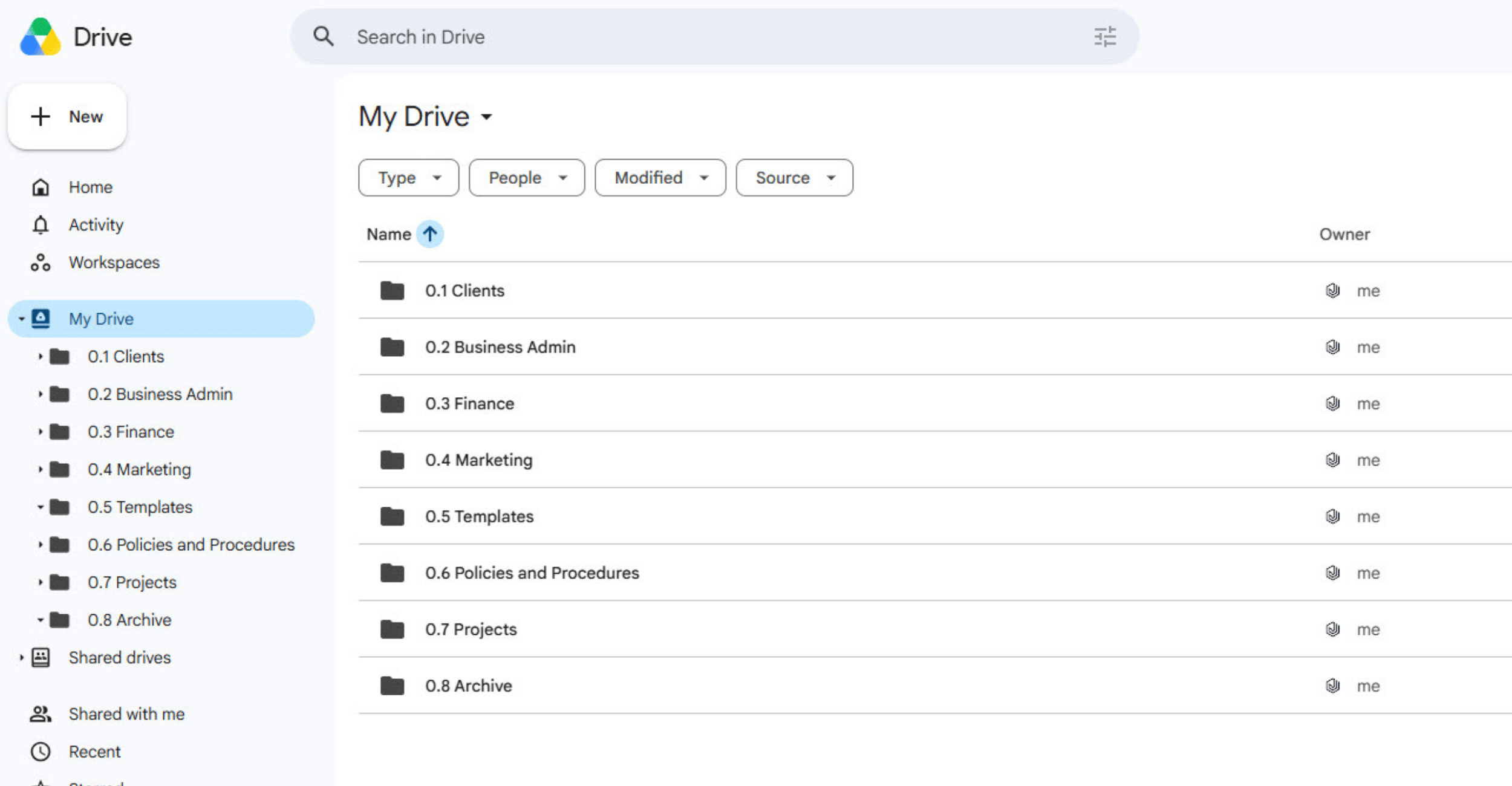
Keep the top level boring and obvious
This is not the time for creative folder names. Google Drive is allowed to be useful before it is pretty.
At the top level, your folders should be clear enough that someone else could open the Drive and make a reasonable guess about where to go.
For example:
01 Clients
02 Business Admin
03 Finance
04 Marketing
05 Templates
06 Policies and Processes
07 Projects
08 Archive
You do not have to use numbers, but they can help keep the most important folders in a sensible order.
The key is to avoid having lots of folders that mean roughly the same thing.
If you have:
Admin
General
Business
Operations
Important
Misc
Useful
…you probably do not have a folder structure.
You have a digital junk drawer. And most businesses have one. No judgement. We have all had a “sort later” folder at some point. The trick is not letting “sort later” become the main operating model.
Use client folders consistently
If you work with clients, client folders are one of the easiest places for Google Drive to get messy.
One client folder has proposals.
Another has meeting notes.
Another has a signed agreement.
Another has five random PDFs and something called “notes”.
The issue is not that files are missing. It is that each client area works differently, so you have to relearn the filing system every time you open a folder.
A simple client folder structure might be:
01 Proposal and Agreement
02 Project Documents
03 Meeting Notes
04 Shared Files
05 Final Deliverables
06 Archive
Not every client will need every folder, but using a repeatable structure makes things much easier.
It also helps if someone else needs to step in, support the work, review a project, or pick something up later.
Because “it is in the client folder somewhere” is only helpful if the client folder is not quietly auditioning for a detective series.
Create a proper home for templates
Templates are one of those things that save time in theory.
In practice, they often end up scattered all over the place.
A proposal template in one client folder.
An onboarding email in another.
A useful checklist attached to an old project.
A form called “Copy of copy of template new”.
This is where a dedicated template folder helps.
You might have:
Proposal templates
Email templates
Meeting note templates
Project templates
Onboarding templates
Checklists
Forms
The important bit is making sure templates are clearly marked as templates.
For example:
TEMPLATE - Client onboarding email
TEMPLATE - Project meeting notes
TEMPLATE - Proposal structure
That way, people are less likely to accidentally edit the original and more likely to make a copy before using it.
Which is always preferable to discovering your beautifully written template now starts with:
“Hi Steve, lovely to speak yesterday.”
Name files like future-you has no memory
File names are where good intentions often go to hide.
When you are in the middle of work, a file name like “Notes” makes sense. You know what notes they are. You made them. You were there.
The problem is future-you. Future-you has no idea what “Notes” means.
Future-you has meetings, emails, invoices, family logistics, a dog barking somewhere, and twelve tabs open.
So name files in a way that gives future-you a fighting chance.
A useful file name might include:
client or project name
document type
date, if relevant
version or status
For example:
Acme Ltd - Project meeting notes - 2026-06-17
Jessanol - Blog plan - Making business tools useful
Client name - Proposal - v1
Client name - Final deliverables checklist
You do not need to over-engineer this. You just need enough information that the file is recognisable in search results and makes sense without opening it.
Make archive part of the system
A lot of messy Drives are not messy because of current work. They are messy because old work never leaves.
Old drafts, previous versions, finished projects, outdated policies, old marketing assets, historic client files — all sitting alongside live work and pretending to still be relevant.
That makes everything harder to find.
An archive folder helps keep current areas cleaner without deleting things you might still need.
For example:
Archive by year
Archive by client
Archive by project
Archive old versions once final versions are agreed
The point is not to hide things. The point is to stop old information competing with live information. Because nothing says “smooth business operations” like accidentally using the 2022 version of a document because it was sitting next to the current one looking innocent.
Be careful with shared files
Shared files are useful, but they can also create confusion.
You might have files shared with you by clients, suppliers, collaborators or team members. Some may live in your Drive. Some may live in someone else’s. Some may appear in “Shared with me” and then vanish from your mental map forever.
A good habit is to decide what needs bringing into your own structure.
For example:
If it is reference-only, leave it where it is.
If it is part of a live project, add a shortcut in the relevant client or project folder.
If it is a final file you are responsible for keeping, save a copy in your own structure.
This avoids relying on “Shared with me” as a filing system. Because “Shared with me” is not a filing system. It is more like a waiting room full of documents you once looked at and now vaguely remember.
Do a small tidy, not a dramatic overhaul
If your Google Drive is already messy, the answer is probably not to spend two full days reorganising everything.
That sounds productive. It may even involve snacks. But it can easily become another unfinished business improvement project.
Start smaller. Choose one area that causes the most friction.
That might be:
client folders
templates
marketing assets
finance documents
project files
onboarding materials
Then tidy that section first.
Create a structure. Rename the worst offenders. Archive what is no longer current and make it easier to find the things you actually use.
Once one area works better, you can repeat the approach elsewhere.
This is much more manageable than trying to fix the whole Drive in one heroic administrative sprint.
Build the habit, not just the folders
A tidy Google Drive is only useful if people keep using it properly.
That means having a few simple habits, such as:
Save files in the right place when they are created.
Use clear file names.
Move old versions into archive.
Keep templates separate from client work.
Agree who owns shared folders.
Review key areas regularly.
Nothing here needs to be complicated. But it does need to be consistent. Because the folders are not the system. The habit is the system. Google Drive is just where the system lives.
A simple Google Drive structure for small businesses
If you are starting from scratch, or trying to tidy things up, a simple structure might look like this:
01 Clients
Client folders, proposals, agreements, project documents, meeting notes and deliverables.
02 Business Admin
General business documents, insurance, registrations, supplier information and internal admin.
03 Finance
Invoices, receipts, reports, accountant information and finance processes.
04 Marketing
Brand assets, social media content, blogs, website copy, case studies and newsletters.
05 Templates
Reusable documents, email templates, checklists, forms and project structures.
06 Policies and Processes
Business policies, standard operating procedures, how-to notes and internal guidance.
07 Projects
Internal business improvement projects, product development, events or one-off pieces of work.
08 Archive
Old versions, completed projects, previous years and inactive client work.
You can adapt this, of course. The right structure is the one that reflects how your business works.
But the important thing is that it is clear, repeatable and not dependent on one person remembering where everything is.
The real test
A well-organised Google Drive is not about having perfect folders. It is about reducing friction.
Can you find the proposal you sent last month?
Can someone else find the latest client document?
Can you quickly access your templates?
Can you tell what is current and what is old?
Can you stop downloading the same logo twelve times because nobody knows where the brand folder is?
That is the real test.
Not whether your Drive looks beautifully organised on day one. But whether it still supports the work three weeks, three months, or three projects later.
Google Drive can absolutely help your business feel more organised. But only if it has a structure that matches the way you work, and habits that keep it useful.
Otherwise, it is just a very spacious cupboard. And we all know what happens when spacious cupboards are left unsupervised.
Need help making sense of your business tools?
If your Google Drive, inbox, task list or business systems are starting to feel more chaotic than helpful, Jessanol can help you sort the structure behind the tool.
Not by making everything complicated.
By creating simple, practical ways of working that make it easier to find things, follow things up, and keep the business moving.
Sometimes the tool is fine. It just needs a better job, a clearer home, and fewer mystery folders called “Misc”.